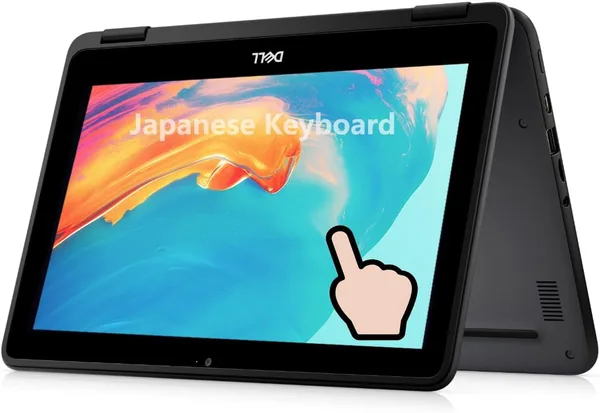
Dell Chromebook 11 3100 2-in-1 touchscreen: is the budget price worth it?
For the price of a nice dinner out, you can buy a touchscreen convertible laptop. Sounds like a trap, but for specific jobs — reading, browsing, Google Docs, a kid learning remotely — this Dell genuinely earns its money. Just don't expect more than it can give: 4GB of RAM and 32GB of storage are the ceiling, and there's no jumping over it.
There's a category of gadgets people buy not by dreaming, but by counting. Not "I want a slick laptop," but "I need something so my kid isn't glued to my work laptop every evening." Or "I need a second screen I can toss in a bag instead of hauling the main one to the summer house." That's exactly the itch the Dell Chromebook 11 3100 2-in-1 was built to scratch.
It's a small 11.6-inch Chrome OS convertible that folds into a tablet, has a touchscreen, and is priced cheap enough that your first reaction is "there has to be a catch." Honestly, there isn't. It's simply not the laptop you'll be editing video on or keeping thirty Chrome tabs open with.
What this actually is under the hood
Chrome OS is essentially a browser wearing an operating system's clothes. Everything you'd typically need — Gmail, Google Docs, YouTube, Zoom, banking — runs through the web, and it runs decently even on weak hardware. Inside is an Intel Celeron N4000, 4GB of RAM, and 32GB of eMMC storage — numbers that looked modest five years ago and look downright spartan today. But Chrome OS handles this hardware far better than Windows 11 would with the same specs. See for yourself: try running a Windows laptop with 4GB of RAM, and it'll be dying at the boot screen. A Chromebook on the same hardware opens tabs without a meltdown, as long as you don't push it too far.
The fact that it's a "2-in-1" — the screen rotates a full 360 degrees and turns the laptop into a tablet — makes it handy for reading on the couch, or for a little one poking at the Chrome OS Play Store. Yes, it does have access to Android apps, and it genuinely works, even if not always smoothly.
Where it shines, and where it starts to annoy you
The keyboard is decent for this class — no sticking, reasonable key travel. The touchscreen responds eagerly, without the lag you often get on budget touch panels. The battery lasts a long time because the processor is frugal to an almost absurd degree — a full working day on one charge is a non-issue.
Where it does annoy you is storage. 32GB of eMMC sounds laughable even for a phone, and here it's the entire drive for the system and your files. The cloud saves the day: Chrome OS pushes almost everything through Google Drive, so very little is stored locally. But if you're used to downloading files and keeping them on the drive — forget it, that's not how this works here.
One more thing worth knowing in advance: this particular unit ships with a Japanese keyboard layout. No, that's not a translation error — the physical keys are labeled to the JIS standard. For most people this isn't a dealbreaker, since you're typing by feel or looking at the screen rather than the keys anyway. But if seeing familiar characters printed on the keys actually matters to you, factor that in before buying.
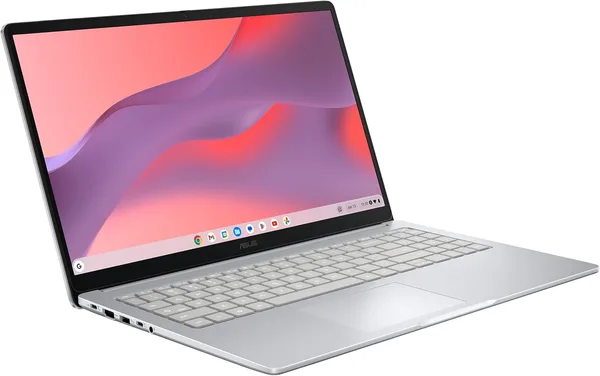
Compared to a similar-class Acer Chromebook — and those show up in the catalog often too — the Dell doesn't lose anything meaningful. Both brands are essentially putting the same Intel guts under Chrome OS, and the difference mostly comes down to the chassis and keyboard. Which brand makes the "better" Chromebook is a matter of taste, not technology.
Who should buy it, and who shouldn't
If you need a primary work tool — video editing, design, heavy spreadsheets, several programs running at once — this isn't your pick, don't even glance in this direction. Head straight to the laptops section for something pricier, with a proper SSD and at least 8GB of RAM.
But if you need a second, third, "household" laptop — for a kid's schoolwork, for parents to video-call and read the news, for the summer house, or as a bedtime reading tablet — this is exactly the case where spending more makes no sense. The price is around $65 for the device itself, and this is a case where shipping and duties make up a noticeable share of the final total, so check the full landed cost on the product page before buying.
The main compromise is storage. The second, less obvious one, is that most of these listings on marketplaces are used or open-box units, so read the specific listing's description carefully. But for the money, this Dell honestly does what it promises — and doesn't try to be anything more.
FAQ
For Chrome OS with a dozen tabs — yes, that's fine. A Zoom call alongside working in Google Docs should also get through, though with no margin to spare. Add YouTube running in the background, though, and you'll feel it slow down. This is a one-task-at-a-time machine, and you need to make peace with that going in.
If you plan to use Android apps heavily or keep a lot of files locally — yes, look for a 64GB-or-higher variant. For the basic "browser plus Google Docs" scenario, the premium isn't justified.
The Chromebook wins thanks to a physical keyboard and a full browser — much more convenient for school assignments and typing. The tablet loses on that front but wins on portability. For learning specifically, I'd go with the Chromebook.
For touch-typing or glancing at the screen instead of the keys, it's not a problem at all. For anyone who relies on seeing familiar letters on the keys, it might be annoying for the first few days, and then you get used to it.
If this one feels a little too limited on specs, take a look at similar models nearby — there are other Chromebook convertibles there with the same "simple and reliable" philosophy.