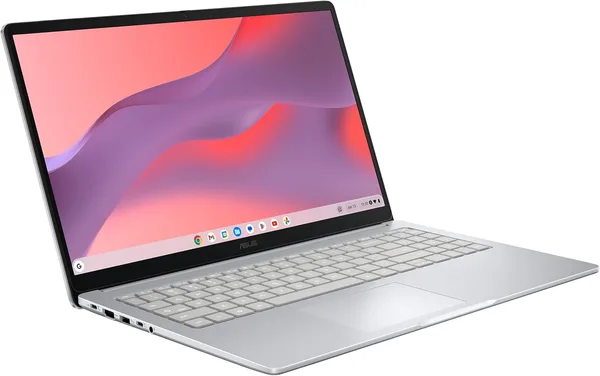
Lenovo IdeaPad 3i Chromebook 15.6\": Review and Should You Buy
The Lenovo IdeaPad 3i Chromebook isn't a "laptop for everything," but it's a smart alternative to a tablet for anyone who lives in the browser: email, documents, video calls, and evening TV. For around $239, including shipped to your country, this is one of the few deals where you're not overpaying for power you don't need. But if you're planning Photoshop, heavy gaming, or offline work with massive Excel files, this isn't your story.
Imagine this: mom asks you to buy her "something for the internet"—to watch YouTube, video chat with grandkids, google recipes. Buying her a gaming laptop from the store would be silly. Buying the cheapest Windows laptop for the same money isn't an option either; it'll be sluggish within a year from system updates, antivirus bloat, and background processes she doesn't even know exist. That's exactly the scenario Chromebooks were invented for.
What Is This Actually
The Lenovo IdeaPad 3i Chromebook is a 15.6-inch laptop with Chrome OS instead of Windows. Inside: Intel Celeron N4500, 8GB RAM, 64GB eMMC storage. On paper, that sounds humble, and measured against a Windows machine, it is. But Chrome OS is a lighter system—it doesn't sacrifice resources to background antivirus or telemetry, so those same "weak" specs work differently here.
The key thing to understand immediately: 64GB storage isn't for stashing movies and games. It's a buffer for the OS and cache; the real work happens in the cloud—Google Docs, Gmail, Google Drive. If you're used to saving everything locally on your C: drive, you'll need to rethink. For some, that's liberation; for others, inconvenience.
How It Works in Real Life
It boots in seconds—genuinely different from any Windows laptop in this price bracket. Open the lid, sign into your Google account (or it's already signed in), and you're in a browser. For someone who just wants to check email in the morning, that's the difference between "convenient" and "forget it." The FHD 15.6-inch screen is solid for watching movies or working with text; the image doesn't fade, and there's room to spread out with tabs.
But reality kicks in once you open 15-20 Chrome tabs simultaneously, add a Zoom stream on top—and the Celeron N4500 shows its limits. It doesn't freeze solid, but it stutters, and there's no fan (not needed for a chip like this), so everything stays quiet but not lightning-fast. For heavy web editors (complex spreadsheets with macros, heavyweight Canva presentations), you'll feel noticeably slower than on a Core i5 machine.
Compared to a typical budget Windows laptop—say, the usual offerings in our budget laptop catalog with Windows 11, 8GB RAM, and a small SSD for similar money—the Chromebook wins on startup speed and system freshness longevity. That budget Windows machine will start lagging in a year from updates and accumulated programs. A Chromebook won't; it feels just as zippy in two years because Chrome OS is lighter and updates more thoughtfully.
Battery, Keyboard, and Details That Actually Matter
Battery is probably the most underrated advantage of Chromebooks overall. Thanks to the light OS and power-sipping chip, the IdeaPad 3i comfortably gets through a full workday without an outlet for typical use—email, documents, video. For a student moving between classes or someone working from different cafes, that's a huge headache lifted.
The keyboard is plain, no backlight, with normal travel and nothing fancy, but nothing annoying either. The trackpad does its job. This is a case where the maker didn't try to wow anyone—just got it right.
Who It's For and Who It Isn't
Get it if: you're looking for a second (or first) laptop for a school-aged kid, parents, or yourself—for browsing, email, streaming, video calls. If you already live in the Google ecosystem and aren't locked into desktop-specific software. If "just works" without wrestling with updates and antivirus is your main requirement.
Skip it if: you need Photoshop, niche accounting software that only runs on Windows, or gaming beyond simple browser titles. Skip it if you plan to work offline a lot—without internet, Chrome OS is significantly limited, though some basics like Docs and email cache and work offline, but it's not a true replacement.
The main compromise: you pay less and get a system that flawlessly does 70% of what 90% of people need—but 30% of the time it simply won't work. A second compromise: 64GB storage. For families who photograph a lot on phones and want to keep everything locally, this might not be enough; you'll need to befriend the cloud or external drives.
Should You Buy It?
Yes, if you understand what you're buying—a Chromebook, not a Windows replacement. It's an honest, affordable machine for internet surfing, studying, and document work—and it doesn't pretend to be anything else. For its price, it does exactly what it promises, no surprises.
Preguntas frecuentes
Yes, totally. The system is lighter than Windows, and 8GB lets you keep a dozen tabs and Zoom running at once without major stuttering. It's not about raw power—it's that Chrome OS is simply less demanding.
If you need specific Windows software, get Windows; no choice here. If the main thing is speed, simplicity, and not lagging after a year, Chromebook wins because of the lighter OS. Budget Windows machines age faster mentally.
Partially. Google Docs, email, and some apps cache for offline work, but it's not full offline mode like Windows. If you're frequently offline, plan ahead.
For the OS and cloud-based work, it's enough. But if you're used to storing movies, games, or big archives locally, you'll need external storage or a cloud subscription. This isn't a storage device.