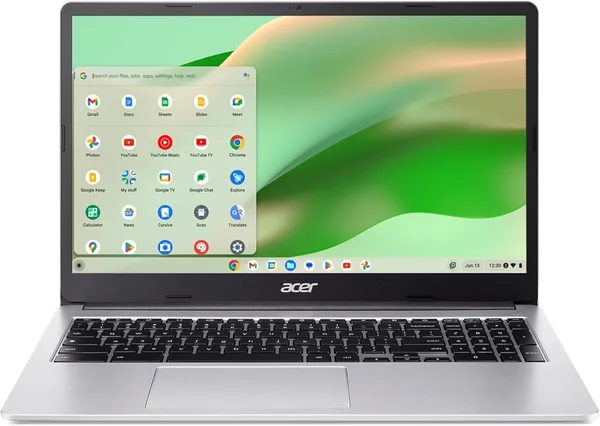
Acer Chromebook 315 (Celeron N4500, 15.6\") review: is it worth buying
The Acer Chromebook 315 isn't really a laptop in the usual sense — it's a big, fast tablet with a keyboard bolted on. At its price it's great for browsing, cloud documents, and video, but the moment you try to make it do anything heavier than ChromeOS was built for, it'll let you down. Buy it knowing exactly what it is, and you'll be happy with it.
Picture the scenario: your kid needs a laptop for remote classes, your partner wants "something to Google stuff and watch Netflix in the evening," and the budget is whatever's actually in the account, not whatever you wish it were. Sound familiar? That's exactly the gap Chromebooks were invented to fill — and the Acer Chromebook 315 slots into it almost perfectly.
What this thing actually is
Let's kill the illusions up front. This is not a Windows laptop — it's ChromeOS. Google's operating system is essentially the Chrome browser stretched across your whole screen, plus a thin layer of file management and support for Android apps from the Play Store. Under the hood sits an Intel Celeron N4500 — two cores, nothing to write home about — paired with 4 GB of RAM and 64 GB of eMMC storage. On paper that looks modest even by 2018 standards. And that's fine, because ChromeOS gets along with numbers like these far better than Windows 11 does, which chokes on 4 GB before the desktop even finishes loading.
The 15.6-inch Full HD IPS display, though, is a genuinely pleasant surprise. Budget laptops love to sneak in dim TN panels with viewing angles so narrow you have to stare dead-on or watch the image wash out. Here you get a proper IPS Full HD panel instead — fine for binge-watching in the evening, fine for reading, easy on the eyes during long stretches of text work. This is the one component that makes the whole model worth a second look, even if you'd never considered a Chromebook before.
Living with it day to day
Flip the lid, and you're in the browser within a couple of seconds. That's arguably ChromeOS's biggest win: none of those endless Windows updates that ambush you right when you need to send something urgently. Google Docs, Gmail, YouTube, Zoom in-browser — all of it runs without a hitch. Push past that and things start to sag: 4 GB of RAM is genuinely tight by today's standards, and Chrome eats it with real enthusiasm. Around 8-10 tabs plus one Play Store app running, and the system starts hinting it's time to close something.
For a kid doing remote school, a student writing papers in Google Docs and sitting through lectures on Meet, or a grandparent who just wants video calls with the grandkids and Facebook — this is close to the perfect tool. It's simple, largely immune to viruses (ChromeOS's architecture makes it meaningfully more secure by default), and needs zero maintenance. But if Photoshop, video editing, demanding games, or some Windows-only corporate software is anywhere in your plans, close this tab now — this isn't your machine.
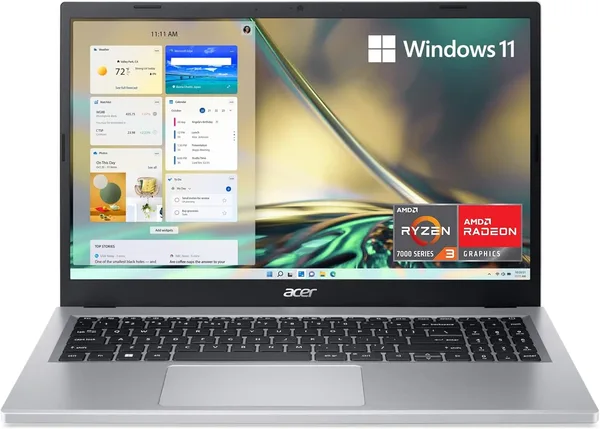
There's plenty to compare it against. The obvious in-house rival is the Acer Chromebook 315 versus its convertible sibling, the Acer R13 — smaller screen, but it folds into a touchscreen tablet. Step up to a full Windows machine like the Acer Aspire 3, and you get Windows with familiar software and usually an SSD instead of eMMC — but you pay for it, and that same Aspire running on 4-8 GB of RAM under Windows will crawl far worse than a Chromebook with identical specs. In the budget tier, ChromeOS simply squeezes more out of the same hardware.
The 64 GB of storage isn't meant for hoarding a movie collection either — it's there for the system, cache, and a handful of apps, while your actual files live in Google Drive. If you're used to keeping everything on a local drive, you'll need to adjust, and not everyone will love that.
The honest verdict
Get this if you need a second laptop — or a first, budget one — purely for browser-based work: online classes, cloud documents, video, light messaging. It's an especially easy sell if someone in the household already lives inside the Google ecosystem, since the sync just works. Skip it if you're planning to install desktop software, play anything heavier than a browser game, or if you're attached to large local file archives without the cloud. One more honest note: the battery lasts a long time because the processor is weak, not because the battery itself is anything special. Long runtime here is a side effect of frugal hardware, not a bonus feature.
Rather than quote a single currency figure that won't mean much across different markets, check dede.sh for the full landed price to your country — item, forwarding, and import duty rolled into one number. Even accounting for that, it remains one of the cheapest ways to get a genuine Full HD screen and a browser that never stutters.
FAQ
Technically, there are enthusiasts who mess around with Linux on Chromebooks, but Windows — no, don't even try. The hardware platform and firmware simply aren't built for it. If you need Windows, buy a separate Windows laptop; there's no compromise version of this.
For ChromeOS, it's plenty for basic use — the system is far lighter than Windows. But if you like keeping 20 tabs open while streaming video in the background, you'll feel the slowdown. For one or two family members with modest needs, it's enough with room to spare.
For purely browser-based schoolwork, the Chromebook usually wins: it boots faster, freezes less, is safer out of the box, and doesn't demand weekly antivirus updates. If the school or university requires a specific desktop application, though, only Windows will do.
It's enough if you're willing to store your files in Google Drive rather than locally. As a main drive for photos, video, or large projects — definitely not, and it was never designed for that.