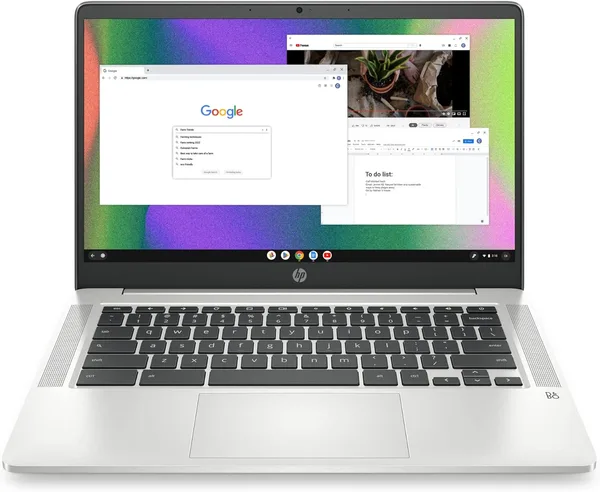
HP Chromebook 14 (Celeron N4120) Review: Is It Worth Buying?
The HP Chromebook 14 with a Celeron N4120 isn't about power — it's a light, cloud-first screen for email, documents, and Zoom, dirt cheap. For a kid, a grandparent, or a backup laptop in your bag — yes. For anything that needs Windows, Photoshop, or a dozen heavy Chrome tabs — absolutely not.
Picture the scene: a kid heads off to school and needs something to log into Google Classroom, bang out an essay, and watch a physics video. Not Cyberpunk, not video editing — just something so they're not lugging Dad's $1,500 gaming laptop around or squinting at a cracked phone screen. That's exactly the scenario Chromebooks were invented for, and the HP Chromebook 14 is one of the cheapest entries in the category.
Let's be upfront: this isn't a laptop in the usual sense. Inside sits a Celeron N4120 — a chip that wasn't impressive even back in 2019 and is frankly dated now. 4GB of RAM. 64GB of onboard storage, a good third of which the system eats immediately. Windows would choke on this before it even finished booting. But ChromeOS is a different story entirely: a lightweight OS that lives mostly in the browser and doesn't ask much of the hardware. So a spec sheet that reads like a list of retired office equipment actually works out fine — just within a very narrow lane.
What it's actually like to use
Flip the lid open and you're in the system within a couple of seconds. That's arguably ChromeOS's biggest edge over Windows laptops at this price point: no agonizing 40-second boot, no background updates hogging the CPU at the worst possible moment. Email, Google Docs, YouTube, browser video calls — all of it opens fast and runs smoothly, right up until you try keeping 15 tabs open at once. And that's where the 4GB of RAM shows its limits: two or three demanding tabs at the same time (say, Google Meet running alongside Docs with a big spreadsheet) and the system starts to hesitate, stuttering for a second or two. Not a dealbreaker, but you'll notice it.
The 14-inch HD screen isn't something you'd want for photo editing or a movie night. Resolution is modest, viewing angles nothing to brag about. But for text, presentations, and video calls, it's plenty — your eyes won't tire after an hour of work. The keyboard is HP's usual solid effort for this class: soft key travel, comfortable to type on, which matters because typing is basically this machine's whole job.
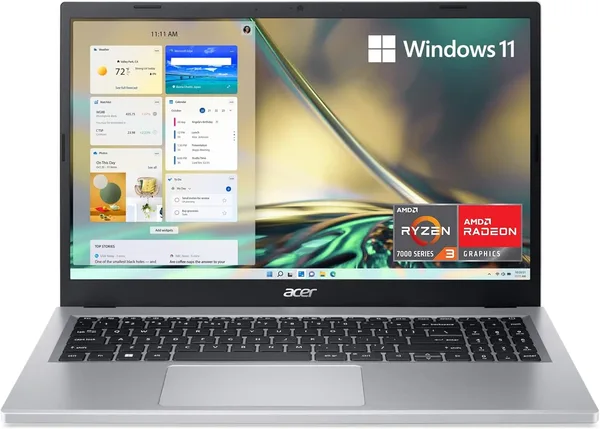
There's plenty to compare it to. The obvious rival in this space is Acer, which has been churning out similar budget Chromebooks for years, running the same playbook: weak processor, little memory, a light OS doing all the heavy lifting. The differences come down to details — build quality, keyboard feel, sometimes a marginally better screen. HP doesn't lose that comparison; if anything, it holds its own.
Battery life is where Chromebooks genuinely earn their reputation, and for good reason. ChromeOS is frugal enough that even a modest battery gets you through a full workday unplugged — as long as you're not blasting max brightness or streaming video nonstop. For a student bouncing between classes, or someone working out of a coffee shop, that's a real, tangible upside.
Who it suits — and who should skip it
Honestly: if you need a laptop that does everything — heavy files, gaming, Adobe apps, or even a stable multitasking Windows experience — forget this model right now, no matter how many nice things I've said about it. 4GB of RAM in 2026 isn't "economical" anymore, it's "barely functional," and ChromeOS doesn't fix that by magic — it just manages the shortage better than Windows ever could.
But if you need a second, cheap device — for a kid heading to school, for a relative who only ever uses a browser, for travel when you don't want to risk your main laptop — the HP Chromebook 14 earns its keep. It's right at home with Google's offline apps, the battery holds up well, and if it gets dropped at school, it stings a lot less than a flagship ultrabook would.
The marketplace listing runs around $219 — and that's before shipping, forwarding, and your country's import charges, which can add a meaningful chunk on top. Check the full landed price on dede.sh before you buy rather than going by the number on the product page alone.
There's really one trade-off here: you're consciously buying a limited tool. Not a "weak laptop," but a tool built on a different philosophy — everything through the browser, everything through the cloud. If you get that and it's what you actually need, buy it without hesitation. If your plan is "I'll just upgrade the RAM later" or "I'll put Windows on it" — no, that's not how this works, and you're better off looking at a regular laptop with at least 8GB of RAM from the start.
FAQ
Not officially, and even the unofficial workarounds are more trouble than they're worth. If you need Windows, buy a laptop with Windows — ChromeOS is baked into this hardware and software so tightly that converting it is a waste of time.
For one or two tasks at a time, yes, easily. Google Docs, email, a video call — fine. But the moment you pile on a bunch of tabs or hit a heavy, ad-loaded website, the system starts to lag. It's not a disaster, but be ready to close things.
If your budget is genuinely tight and you only need a browser, the Chromebook wins on responsiveness and battery life. If you need to install desktop apps, work offline with heavy files, or game, a cheap Windows laptop — sluggish as it may be — gives you more flexibility.
This is exactly the scenario it was built for. Lightweight, simple to manage, with parental controls through Google Family Link, and cheap enough that it's not a tragedy if it gets knocked off a desk.